Stay Management and Billing
Open a stay from the Reservation List, arrivals/departures lists, room view, or Bills. The stay window contains General, Payments, Room, and Other.
General tab
Review or update the dates, occupants, rate type, nightly rate, company, business source, primary guest, package, and travel purpose. Use Save Changes before leaving the tab and reopen the stay to confirm important changes.
Add a service charge
- Open the stay and select Add Charge.
- Select the correct service: Other, Restaurant, Bar, Health Club, Laundry, Accommodation, or POS Bill.
- Enter the amount and a clear description.
- Confirm the guest, room, service, date, and amount.
- Select Save once.
- Confirm the line under Room Charges and review Amount Due.
Do not combine unrelated services into one vague charge. A correction must follow the property's authorized financial procedure.
Add a payment
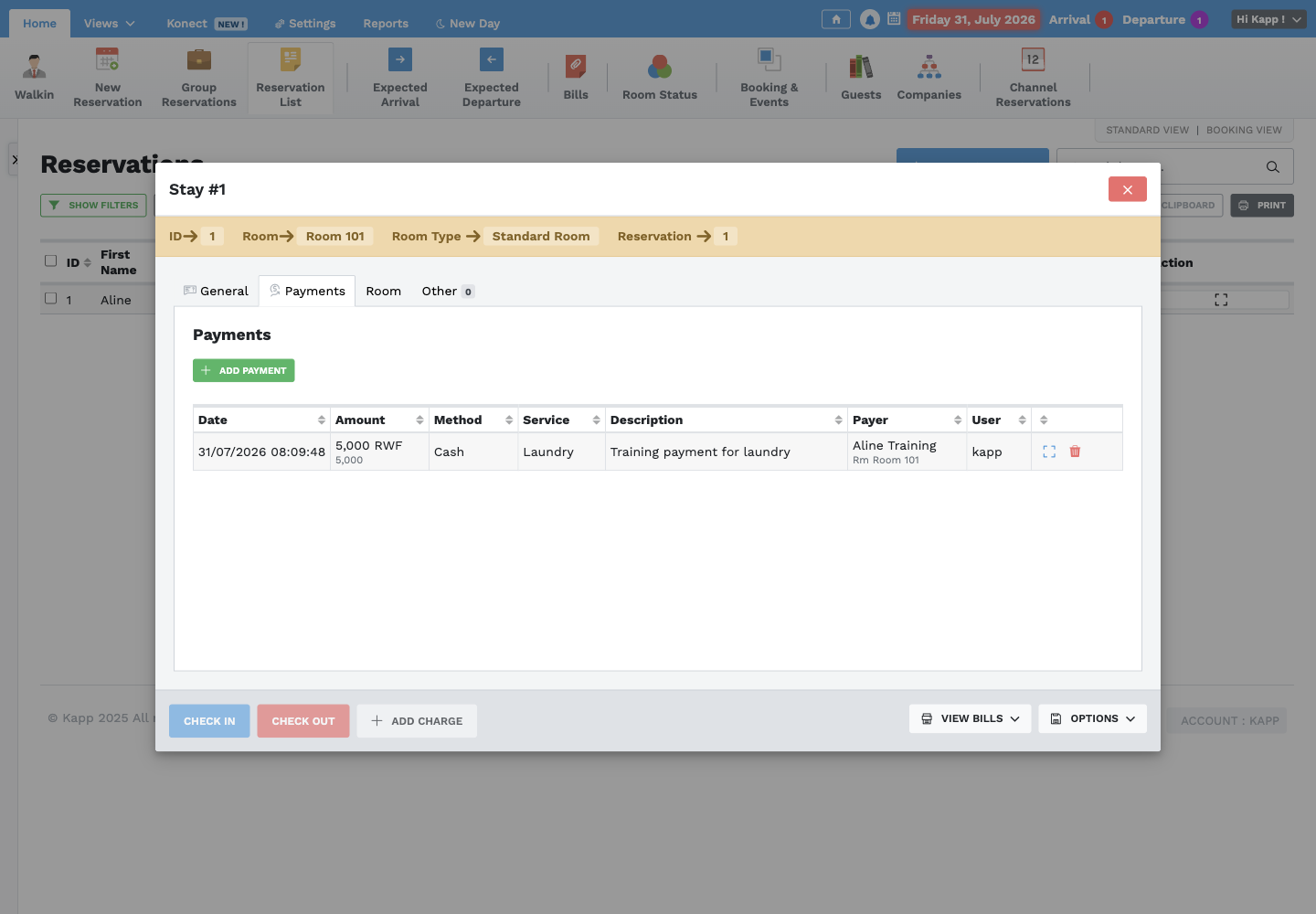
- Open Payments and select Add Payment.
- Select the actual payment method and currency.
- Enter the amount received.
- Select the related service when applicable.
- Add a useful description and select Add Payment once.
- Confirm the date, amount, method, service, payer, and user in the payment list.
- Return to General and confirm Amount Paid and Balance.
Never record a payment before funds are received or confirmed. Refunds and payment corrections require the authorized role and a clear reason.
Receive payment in another currency
- Confirm that the currency is accepted by the property and its current approved exchange rate is available in OTO.
- Select the actual payment method and the currency handed over by the guest.
- Enter the amount in that selected currency, not its local-currency value.
- Add a clear description and complete the payment once.
- Verify the original amount and currency and the converted amount applied to the stay.
- Confirm the remaining balance before giving change or adding another payment.
Example: If a guest pays USD 100, select USD and enter 100. OTO applies the configured exchange rate and records the corresponding value in the property's main currency. Confirm the displayed conversion; do not enter the converted value as though it were USD.
When a guest uses two currencies, add each received amount as a separate payment. This preserves the correct evidence for reconciliation.
Review and print bills
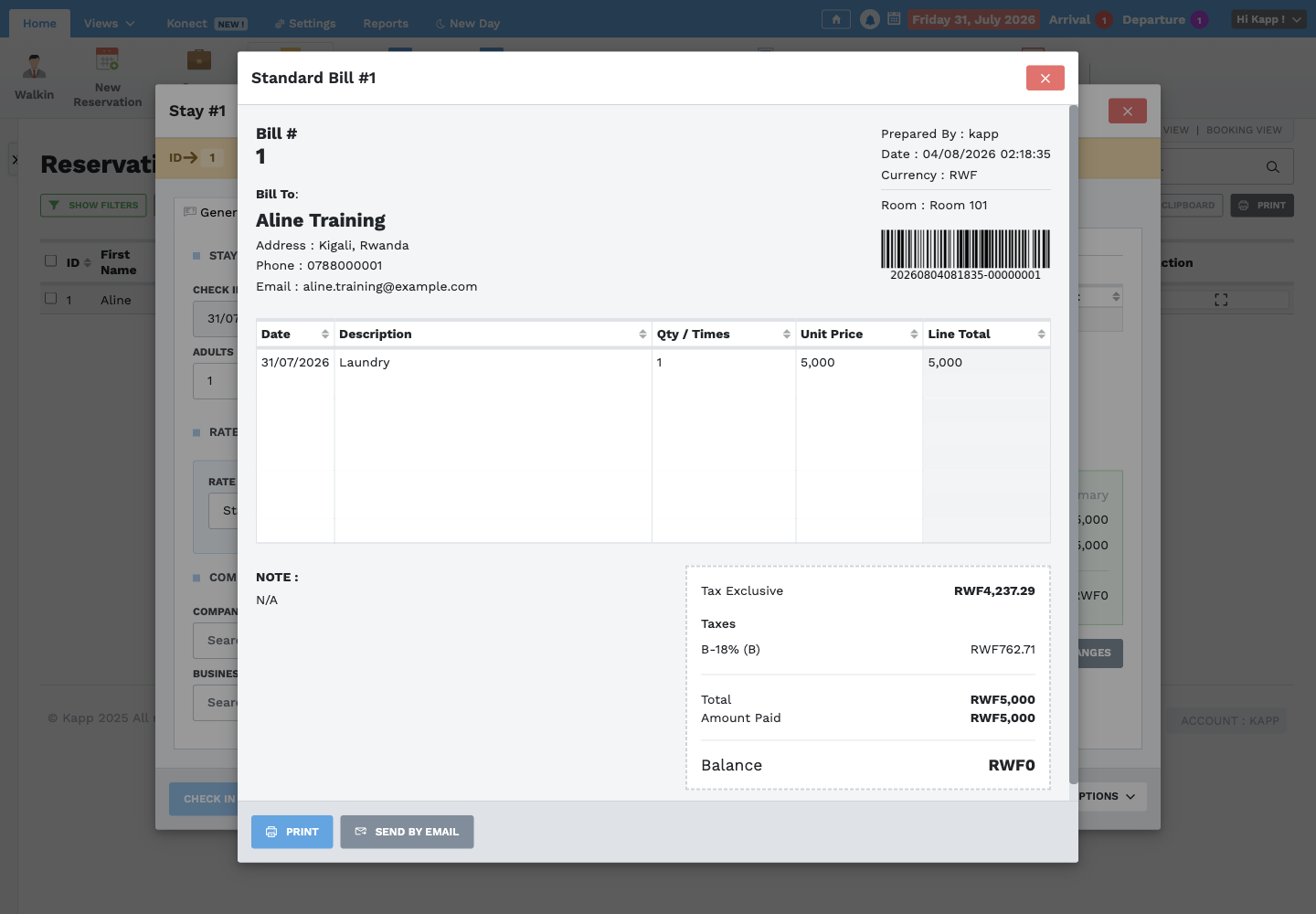
Select View Bills, then choose the output required by the guest or property:
- Standard Bill: combined stay charges and payment summary.
- Multi-Currency Bill: bill presented with supported currency information.
- Bill With Payments: includes payment lines for reconciliation.
- Accommodation Bill: accommodation charges only.
- Extra-Sales Bill: non-accommodation services only.
Before printing or emailing, confirm the bill-to name, room, dates, line items, tax, total, amount paid, and balance. Use Send by Email only after confirming the guest's email address and consent.
For a Multi-Currency Bill, select the requested supported currency and review the displayed exchange rate and converted totals before printing. This changes how the bill is presented; it does not create, replace, or change a payment already recorded on the stay.
Add another room guest
Open the Room tab and select Add Guest. Record each actual occupant with the correct identity and stay dates. The primary guest remains responsible for the main stay record unless the property authorizes a change.
Move a guest to another room
- Open the Room tab.
- Confirm the destination room is vacant, ready, and appropriate.
- Enter the destination room, approved new nightly rate, and a specific reason.
- Select Shift Guest once.
- Confirm the stay shows the new room.
- Confirm the old room and new room statuses.
- Verify the move in the Room Transfer report.
Do not move a guest by manually changing room statuses.
Notes and comments
Use Other for operational comments and additional stay information. Write facts needed for service and handover; do not enter passwords, card details, or unnecessary sensitive information.
Check out
- Confirm the guest is departing and review the checkout date.
- Confirm all accommodation and service charges are present.
- Review payments, refunds, tax, total, and balance.
- Produce the requested bill and resolve any authorized balance.
- Select Check Out and confirm the prompt.
- Confirm the stay is Checked-Out.
- Confirm the room becomes Dirty for housekeeping.
- Complete the shift handover and payment reconciliation.
A room must not be returned to Vacant until it has been cleaned and released.