Sales, Invoices, and Payments
Choose the right document
| Document | Use it when |
|---|---|
| Proforma | The customer needs a quotation or preliminary bill before the final invoice |
| Sales Order | The customer has placed an order that must be tracked before invoicing |
| Delivery Note | Goods or services delivered need receiving evidence |
| Invoice | The final amount is due from the customer |
Do not create several documents for the same transaction unless the process requires them. Link the related proforma, order, delivery, and invoice whenever the option is available.
Create a proforma
- Search existing proformas and confirm the customer.
- Select New Proforma.
- Enter the code, status, customer, currency, and date.
- Add each item with its name, unit price, quantity, tax, and number of times when applicable.
- Add an external note suitable for the customer and a useful description.
- Recheck line totals, taxes, currency, and grand total.
- Save as Draft while it awaits review.
- After authorization, update it to the approved customer status and verify it in the Proforma list and report.
Create a sales order
- Select New Sales Order and choose the correct customer.
- Enter the date and keep the order Pending until approved.
- Add every item, unit price, quantity, and number of times.
- Enter a clear prestation or description.
- Save once, reopen it, and compare the items and total with the customer's request.
- An authorized user changes the order to Approved only when it is ready for fulfilment or invoicing.
Create a delivery note
- Confirm that delivery actually occurred or is ready for the approved receiving process.
- Select New Delivery Note.
- Enter the code, related proforma when applicable, customer, and date.
- Add the delivered item names, unit prices, quantities, and totals.
- Add the external note and description.
- Save once and verify the customer, items, quantities, date, and related document before printing or sharing.
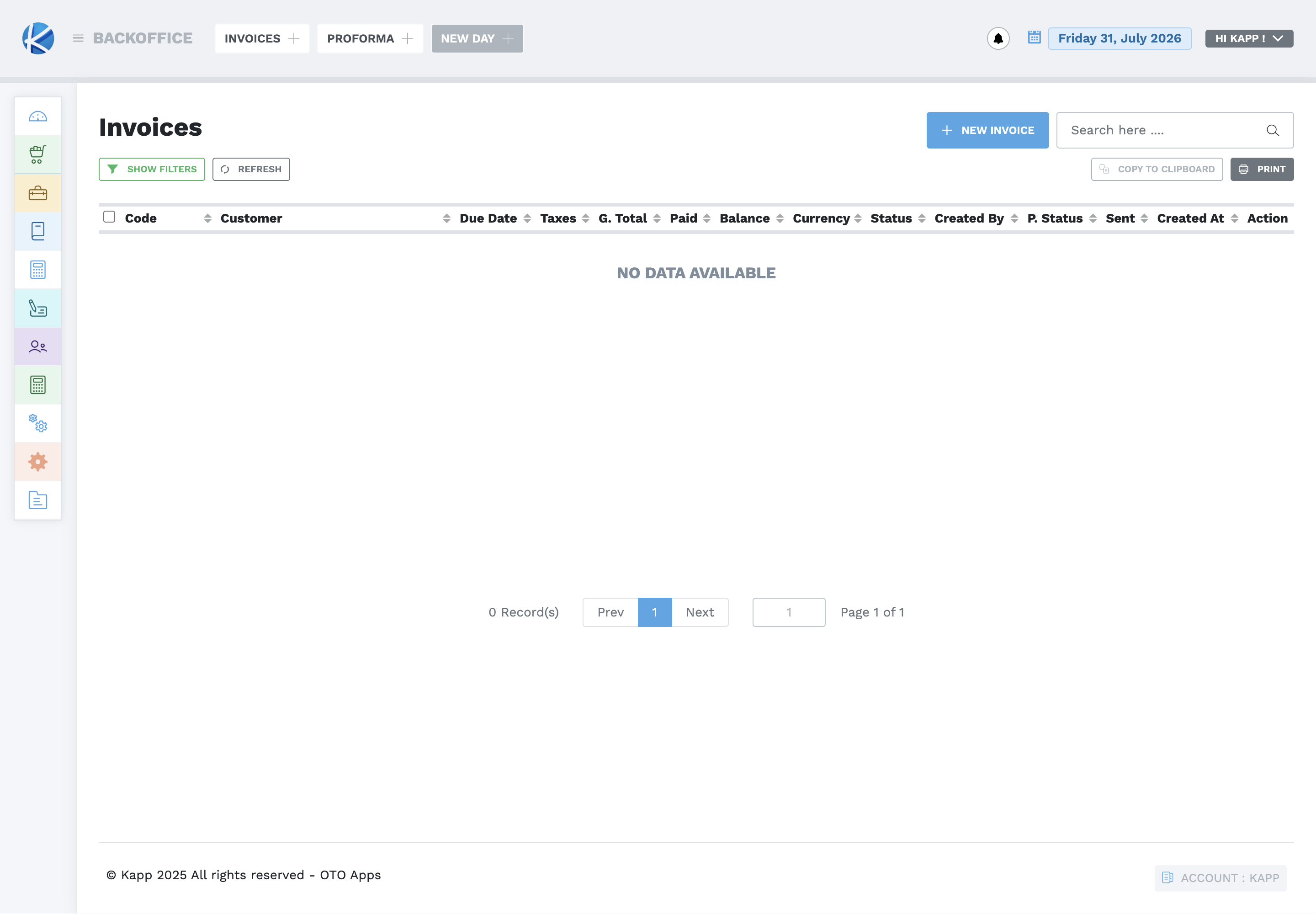
Create an invoice
- Search first to prevent duplicate invoicing.
- Select New Invoice.
- Enter the code and use Draft while the invoice awaits review.
- Select the customer, currency, related proforma when applicable, invoice date, and due date.
- Add each item with its date when needed, item name, unit price, quantity, tax, and number of times.
- Review subtotal, tax, grand total, due date, and currency.
- Add a customer-facing note and an internal description as appropriate.
- Save once, reopen it, and confirm the list shows the expected invoice and payment status.
Invoice statuses include Draft, Pending, On-Hold, Cancelled, and Closed. Use the status that describes what actually happened; do not close an invoice merely because a payment is expected.
Record an invoice payment
- Confirm that funds were received or verified.
- From the invoice actions, choose Add Payment.
- Enter the payment date and amount.
- Select the actual currency and payment method.
- Select approved withholding tax when it genuinely applies.
- Add a useful note and select Add Payment once.
- Use Show Payments to verify date, amount, currency, withholding tax, method, note, and user.
- Reopen the invoice and confirm Amount Paid, Balance, and payment status.
For payments in more than one currency, record each received currency as a separate payment and verify the converted value. Never enter the local value as though it were the foreign amount.
Deleting a payment changes the invoice balance and reports. Only an authorized user may remove a mistaken payment after confirming the original record and the approved correction evidence.
Send, print, and reconcile
Before printing or emailing, confirm the customer, document code, dates, items, taxes, totals, currency, payment status, and balance. Verify the destination email before sending. Use the Invoices Overview and Payments by Method reports to confirm that saved activity appears in the correct period.